קורס רובוטיקה ובינה מלאכותית : A106-02 מיקרו מעבד ושפת פייתון מבוא ל YOLO
חלק ב: מבוא ל לשפת פייתון וקולאב (ללא רקע בכלל)
נריץ את הדברים ב COLAB  https://colab.google/
|
1 2 |
<span style="color: #ff0000;">print("Hello World!") </span> |
כתיבת תוכנית נכונה בקולאב
קוד בלוק עבור התקנת סיפיות \ וקוד בלוק עבור הרצת תוכנית
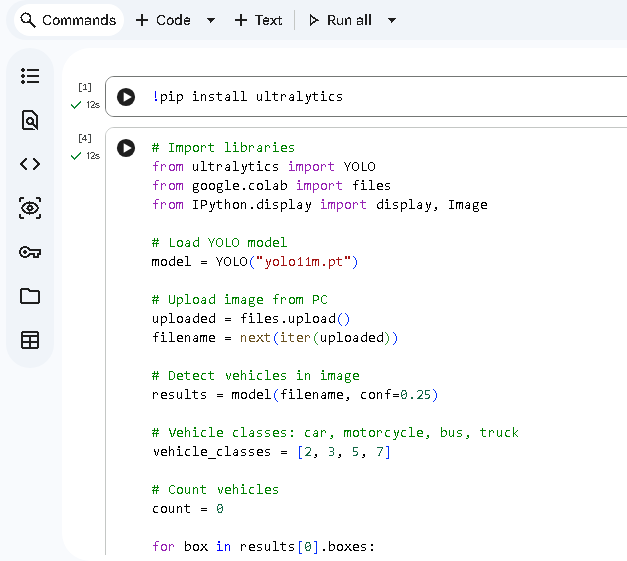
חלק ג: מבוא ל לשפת פייתון וקולאב (ללא רקע בכלל)

|
1 |
!pip install ultralytics |
מה זה YOLO בתחום הבינה המלאכותית?
YOLO – You Only Look Once הוא אלגוריתם בתחום הראייה הממוחשבת (Computer Vision), המבוסס על רשתות נוירונים עמוקות (Deep Learning).
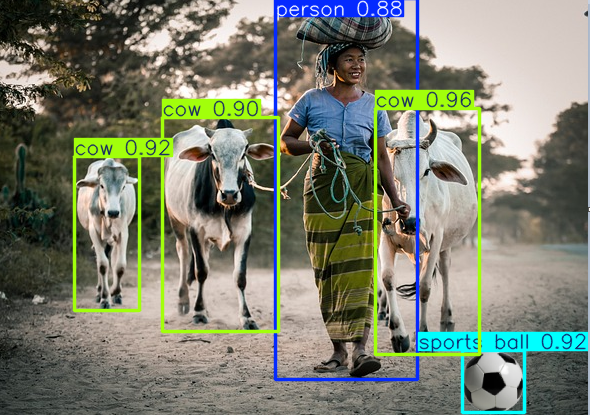
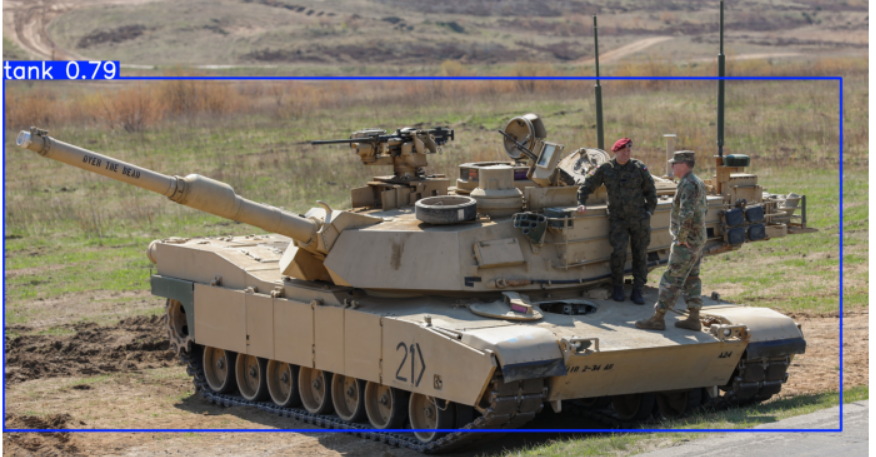
המטרה שלו היא לזהות עצמים בתמונות ובווידאו בזמן אמת, לקבוע איזה עצם מופיע בתמונה והיכן הוא נמצא.
לדוגמה, מצלמה המחוברת לרובוט יכולה לזהות:
-
בני אדם, בעלי חיים ומכוניות.
-
כדורים, קופסאות וכלים.
-
מכשולים במסלול של רובוט.
-
עצמים שזרוע רובוטית צריכה לתפוס.
איך YOLO עובד?
המודל מקבל תמונה ומבצע חישוב אחד ברשת הנוירונים כדי להפיק תחזיות זיהוי.
לכל עצם הוא מחזיר בדרך כלל:
| פרמטר | משמעות |
|---|---|
| Class | סוג העצם, למשל Ball |
| Bounding Box | מלבן סביב העצם |
| Confidence | רמת הביטחון בזיהוי |
| X, Y | מיקום העצם בתמונה |
| Width, Height | רוחב וגובה המלבן |
לדוגמה, רובוט שמצלם כדור יכול לקבל:
Object: Ball
Confidence: 0.96
Center X: 320 pixels
Center Y: 240 pixels
Width: 80 pixels
Height: 80 pixels
המשמעות: המודל זיהה כדור ברמת ביטחון של 96%, במרכז התמונה.
1. COCO Dataset Classes (default 80 classes used by YOLOv5/YOLOv8/YOLOv7 etc.)
Here is the full list of 80 YOLO COCO classes in order (index 0→79):
| 1 | 2 | 3 | 4 | 5 | 6 |
|---|---|---|---|---|---|
| 0 person | 1 bicycle | 2 car | 3 motorcycle | 4 airplane | 5 bus |
| 6 train | 7 truck | 8 boat | 9 traffic light | 10 fire hydrant | 11 stop sign |
| 12 parking meter | 13 bench | 14 bird | 15 cat | 16 dog | 17 horse |
| 18 sheep | 19 cow | 20 elephant | 21 bear | 22 zebra | 23 giraffe |
| 24 backpack | 25 umbrella | 26 handbag | 27 tie | 28 suitcase | 29 frisbee |
| 30 skis | 31 snowboard | 32 sports ball | 33 kite | 34 baseball bat | 35 baseball glove |
| 36 skateboard | 37 surfboard | 38 tennis racket | 39 bottle | 40 wine glass | 41 cup |
| 42 fork | 43 knife | 44 spoon | 45 bowl | 46 banana | 47 apple |
| 48 sandwich | 49 orange | 50 broccoli | 51 carrot | 52 hot dog | 53 pizza |
| 54 donut | 55 cake | 56 chair | 57 couch | 58 potted plant | 59 bed |
| 60 dining table | 61 toilet | 62 tv | 63 laptop | 64 mouse | 65 remote |
| 66 keyboard | 67 cell phone | 68 microwave | 69 oven | 70 toaster | 71 sink |
| 72 refrigerator | 73 book | 74 clock | 75 vase | 76 scissors | 77 teddy bear |
| 78 hair drier | 79 toothbrush |
סה״כ: 80 מחלקות (Classes) של מערך הנתונים COCO, המשמש לאימון מודלי YOLO לזיהוי עצמים.
תרגיל כיתה עם המרצה שלב אחרי שלב-:
התנסות ראשונית של YOLO ומעבר ראשוני על קוד פייתון ב COLAB
סרטון מהיר – שלב אחרי שלב
- פתחו דפדפן כרום , הכנס ל GMAIL
- פתח את סביבת הפיתוח COLAB
- התקן את הספריות YOLO ולחץ PLAY על הכפתור השחור
4.לחץ על

5. הורד את התמונה למחשב ה PC וטען אותה לקולאב בהצרת התרגיל סאיף 6
 לימוד YOLO בינה מלאכותית[/caption]
6.העתק את קוד הפייתון לקולאב והרץ את התרגיל
|
1 2 3 4 5 6 7 8 9 10 11 12 13 14 15 16 17 18 19 20 21 22 23 24 25 26 27 28 29 30 31 32 33 34 35 36 37 38 39 40 41 42 43 44 45 46 47 48 49 50 51 52 53 54 55 56 |
from ultralytics import YOLO # YOLO object detection from google.colab import files # Upload files in Colab from collections import Counter # Count objects import cv2 # Image processing from IPython.display import display # Display images from PIL import Image # Image handling # 1. Upload image uploaded = files.upload() img_path = next(iter(uploaded.keys())) print("Uploaded:", img_path) # 2. Load YOLO26 Medium model model = YOLO("yolo26m.pt") # n=Nano, s=Small, m=Medium, l=Large, x=Extra Large # 3. Detect objects results = model.predict( source=img_path, # Input image conf=0.65, # Minimum confidence: 65% verbose=False # Disable detailed logs ) # 4. Get first image result r = results[0] # 5. Count detected objects if r.boxes is None or len(r.boxes) == 0: print("No objects found.") else: # Get detected class IDs class_ids = r.boxes.cls.cpu().numpy().astype(int) # Total number of objects total_objects = len(class_ids) # Convert class IDs to names names = model.names class_names = [names[c] for c in class_ids] # Count objects by class counts = Counter(class_names) print(f"Total objects found: {total_objects}") print("Objects by class:") for cls_name, cnt in counts.items(): print(f" {cls_name}: {cnt}") # 6. Display image with detection boxes annotated = r.plot() # Draw boxes and labels # Convert BGR to RGB annotated_rgb = cv2.cvtColor(annotated, cv2.COLOR_BGR2RGB) # Show result display(Image.fromarray(annotated_rgb)) |
תרגיל כיתה 1 : זיהו עומסי תמונה על ידי מודל בינה מלאכותית מסוג YOLO
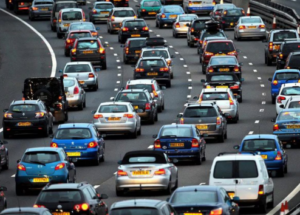

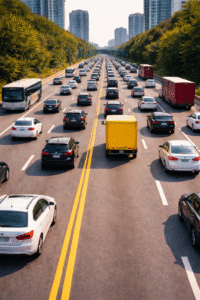
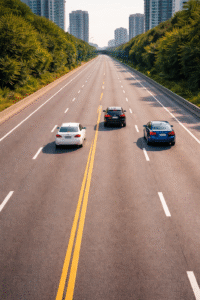
- השתמש בינה מלאכותית מסוג chatgpt
- הקלד את הפרומפט הבא
כתוב קוד Python פשוט עבור Google Colab המשתמש בספריית YOLO ובספריות ultralytics, ו־IPython display.
התוכנית תאפשר להעלות תמונה מהמחשב (PC), תזהה ותספור את כל המכוניות, האופנועים, המשאיות והאוטובוסים בתמונה.
אם סך כלי הרכב גדול מ־3, הצג באנגלית ROAD BUSY, אחרת הצג ROAD FREE.
הצג את מספר כלי הרכב ואת התמונה עם מסגרות הזיהוי והכיתוב המתאים. הוסף הערות קצרות לקוד.
תחלק ב הוסף לתרגיל הקיים לאחר שעבד
3.התוכנה כותבת פלט טקטס בפורמט json כיתוב של שעה דקה שניה ותאריך וכמות כלי תחבורה שנמצאו
4..התוכנה כותבת פלט טקטס בפורמט XML כיתוב של שעה דקה שניה ותאריך וכמות כלי תחבורה שנמצאו
תרגיל כיתה 2 : זיהוי מטוס על מסלול המראה מניעת התנגשות


- בנה תוכנה אשר בודקת האם קיים מטוס על מסלול ההמראה עבור COLAB בעזרת YOLO התוכנה מעלה קובץ תמונה ממחשב ה PC ל COLAB
- אם יש על מסלול ההמראה מטוס מסמנת בריבוע אדום כותבת תאריך : שעה דקה שניה ומציגה את התמונה
- התוכנה כותבת פלט טקטס בפורמט json כיתוב של שעה דקה שניה ותאריך וסטטוס מסלול המראה פנוי או יש מטוס
חלק ד: בינה מלאכותית Polygon ROI – Region of Interest
שימוש ב YOLO מבוא
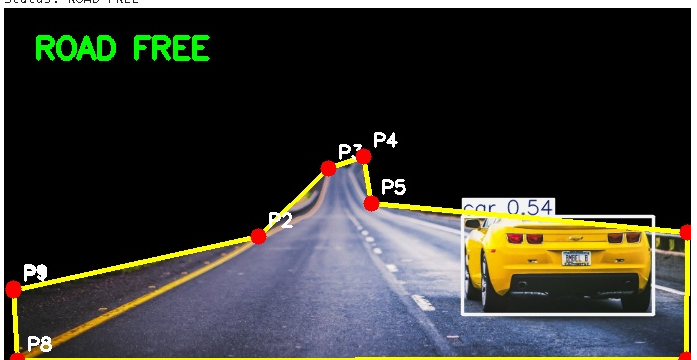
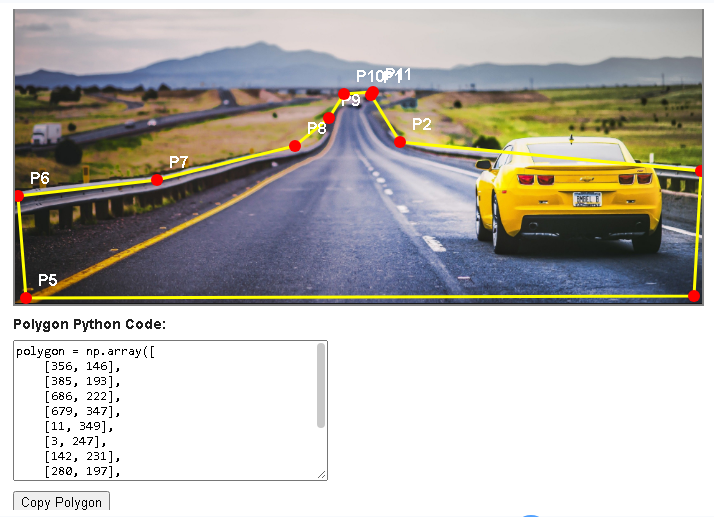
אפשר להגדיר Polygon ROI – Region of Interest, כלומר אזור מצולע בתמונה שרק בתוכו YOLO יזהה אובייקטים.
יש שתי שיטות:
-
Mask לפני YOLO – מסתירים בשחור את כל האזור שמחוץ לפוליגון, ואז מפעילים YOLO. כך המודל מקבל רק את האזור הרצוי.
-
סינון אחרי YOLO – מפעילים YOLO על כל התמונה, אבל סופרים רק אובייקטים שמרכזם בתוך הפוליגון.
לתרגיל ב־Google Colab אני ממליץ על השיטה הראשונה.
תרגיל כיתה 4 : מתקדם
תרגיל כיתה: זיהוי עומס בכביש באמצעות YOLO ופוליגון
מטרה: שימוש ב־Google Colab לזיהוי וספירת כלי רכב באזור מוגדר בתמונה, וקביעת מצב עומס הכביש.
1. שלב 1 – יצירת פוליגון בתמונה
כתוב תוכנית Python עבור Google Colab המשתמשת בספריות google.colab.files, IPython.display, numpy ו־JavaScript.
התוכנית תאפשר להעלות תמונה מהמחשב ולסמן פוליגון באמצעות לחיצות עכבר. הצג נקודות אדומות וקווים צהובים המחברים ביניהן.
לחיצה על E תסגור את הפוליגון, ולחיצה על R תאפשר להתחיל מחדש.
בסיום הצג את קואורדינטות הפוליגון כמערך numpy בשם polygon, עם אפשרות להעתיק אותו לקוד Python.
2. שלב 2 – זיהוי כלי רכב בתוך הפוליגון
כתוב תוכנית Python פשוטה עבור Google Colab המשתמשת בספריות ultralytics.YOLO, opencv, numpy, google.colab.files ו־IPython.display.
התוכנית תעלה תמונה מהמחשב ותכלול אזור מסומן START HERE / END HERE להדבקת מערך הפוליגון מהשלב הראשון.
הפעל YOLO לזיהוי מכוניות, אופנועים, אוטובוסים ומשאיות רק באזור הפוליגון. ספור רק כלי רכב שמרכזם בתוך הפוליגון.
אם נמצאו מעל 3 כלי רכב, הצג ROAD BUSY, אחרת ROAD FREE.
הצג את התמונה עם מסגרות הזיהוי, נקודות פוליגון אדומות, קווים צהובים ומספר כלי הרכב. הוסף הערות קצרות באנגלית.
פתרון :
שלב 1
|
1 2 |
# Install YOLO library !pip install ultralytics |
|
1 2 3 4 5 6 7 8 9 10 11 12 13 14 15 16 17 18 19 20 21 22 23 24 25 26 27 28 29 30 31 32 33 34 35 36 37 38 39 40 41 42 43 44 45 46 47 48 49 50 51 52 53 54 55 56 57 58 59 60 61 62 63 64 65 66 67 68 69 70 71 72 73 74 75 76 77 78 79 80 81 82 83 84 85 86 87 88 89 90 91 92 93 94 95 96 97 98 99 100 101 102 103 104 105 106 107 108 109 110 111 112 113 114 115 116 117 118 119 120 121 122 123 124 125 126 127 128 129 130 131 132 133 134 135 136 137 138 139 140 141 142 143 144 145 |
from google.colab import files from IPython.display import display, HTML import base64 import mimetypes import uuid # Upload image from PC uploaded = files.upload() filename = next(iter(uploaded)) # Convert image to Base64 for browser display image_data = base64.b64encode(uploaded[filename]).decode() mime = mimetypes.guess_type(filename)[0] or "image/png" # Unique ID for the editor editor_id = "editor_" + uuid.uuid4().hex[:8] # Interactive polygon editor html = """ <div id="EDITOR_ID" style="font-family:Arial"> <p>Click image to add points | E = End | R = Reset</p> <canvas tabindex="0" style="max-width:100%;border:2px solid gray;cursor:crosshair"> </canvas> <p><b>Polygon Python Code:</b></p> <textarea rows="9" cols="42" readonly></textarea> <p><button type="button">Copy Polygon</button></p> </div> <script> (function() { const root = document.getElementById("EDITOR_ID"); const canvas = root.querySelector("canvas"); const ctx = canvas.getContext("2d"); const textarea = root.querySelector("textarea"); const button = root.querySelector("button"); const img = new Image(); let points = []; let finished = false; img.onload = function() { canvas.width = img.naturalWidth; canvas.height = img.naturalHeight; draw(); }; img.src = "data:IMAGE_MIME;base64,IMAGE_DATA"; // Draw image, yellow lines and red points function draw() { ctx.drawImage(img, 0, 0); ctx.lineWidth = Math.max(3, canvas.width / 300); ctx.strokeStyle = "yellow"; if (points.length > 0) { ctx.beginPath(); ctx.moveTo(points[0][0], points[0][1]); for (let i = 1; i < points.length; i++) { ctx.lineTo(points[i][0], points[i][1]); } if (finished) ctx.closePath(); ctx.stroke(); } points.forEach((p, i) => { ctx.beginPath(); ctx.arc(p[0], p[1], Math.max(6, canvas.width / 180), 0, 2 * Math.PI); ctx.fillStyle = "red"; ctx.fill(); ctx.fillStyle = "white"; ctx.font = `bold ${Math.max(16, canvas.width / 65)}px Arial`; ctx.fillText("P" + (i + 1), p[0] + 12, p[1] - 12); }); } // Add polygon point with mouse canvas.addEventListener("click", function(e) { if (finished) return; const rect = canvas.getBoundingClientRect(); const x = Math.max(0, Math.min(canvas.width - 1, Math.round((e.clientX - rect.left) * canvas.width / rect.width))); const y = Math.max(0, Math.min(canvas.height - 1, Math.round((e.clientY - rect.top) * canvas.height / rect.height))); points.push([x, y]); draw(); canvas.focus(); }); // Generate Python code function updateCode() { textarea.value = "polygon = np.array([\\n" + points.map(p => " [" + p[0] + ", " + p[1] + "]") .join(",\\n") + "\\n], dtype=np.int32)"; } // E = End polygon, R = Reset document.addEventListener("keydown", function(e) { if (!root.isConnected) return; if (e.target.tagName === "TEXTAREA" || e.target.tagName === "INPUT") return; const key = e.key.toLowerCase(); if (key === "e" && points.length >= 3) { finished = true; updateCode(); draw(); e.preventDefault(); } if (key === "r") { points = []; finished = false; textarea.value = ""; draw(); e.preventDefault(); } }); // Copy polygon coordinates button.addEventListener("click", function() { textarea.select(); document.execCommand("copy"); }); })(); </script> """ html = html.replace("EDITOR_ID", editor_id) html = html.replace("IMAGE_MIME", mime) html = html.replace("IMAGE_DATA", image_data) # Show interactive editor in Colab display(HTML(html)) |
דוגמא לפוליגון
|
1 2 3 4 5 6 |
polygon = np.array([ [100, 150], [500, 150], [600, 450], [50, 450] ], dtype=np.int32) |
הרצה קוד YOLO עם הפוליגון
|
1 2 3 4 5 6 7 8 9 10 11 12 13 14 15 16 17 18 19 20 21 22 23 24 25 26 27 28 29 30 31 32 33 34 35 36 37 38 39 40 41 42 43 44 45 46 47 48 49 50 51 52 53 54 55 56 57 58 59 60 61 62 63 64 65 66 67 68 69 70 71 72 73 74 75 76 77 78 79 80 81 82 83 84 85 86 87 88 89 90 91 92 93 94 95 96 97 98 |
# Import libraries import cv2 import numpy as np from ultralytics import YOLO from google.colab import files from IPython.display import display, Image # Upload image from PC uploaded = files.upload() filename = next(iter(uploaded)) # Read image img = cv2.imread(filename) # ========================================== # START HERE - ADD YOUR POLYGON # ========================================== polygon = np.array([ [100, 150], [500, 150], [600, 450], [50, 450] ], dtype=np.int32) # ========================================== # END HERE # ========================================== # Create black mask mask = np.zeros(img.shape[:2], dtype=np.uint8) # Fill polygon with white color cv2.fillPoly(mask, [polygon], 255) # Keep only image area inside polygon roi = cv2.bitwise_and(img, img, mask=mask) # Load YOLO model model = YOLO("yolo11n.pt") # Detect vehicles # 2 = car, 3 = motorcycle, 5 = bus, 7 = truck results = model(roi, classes=[2, 3, 5, 7]) # Count only vehicles whose center is inside polygon count = 0 for box in results[0].boxes: x, y, w, h = box.xywh[0].tolist() # Check center point inside polygon inside = cv2.pointPolygonTest( polygon, (float(x), float(y)), False ) if inside >= 0: count += 1 # Check traffic if count > 3: status = "ROAD BUSY" else: status = "ROAD FREE" # Draw YOLO detection boxes output = results[0].plot() # Draw yellow polygon lines cv2.polylines(output, [polygon], True, (0, 255, 255), 3) # Draw red polygon points for i, (x, y) in enumerate(polygon): # Red circle cv2.circle(output, (int(x), int(y)), 8, (0, 0, 255), -1) # Point number cv2.putText(output, f"P{i+1}", (int(x)+10, int(y)-10), cv2.FONT_HERSHEY_SIMPLEX, 0.6, (255, 255, 255), 2) # Write result on image cv2.putText(output, status, (30, 50), cv2.FONT_HERSHEY_SIMPLEX, 1, (0, 255, 0), 3) # Save output cv2.imwrite("result.jpg", output) # Print results print("Vehicles:", count) print("Status:", status) # Display result image display(Image(filename="result.jpg")) |
חלק ה : מבוא למיקרובקרים
מיקרו־בקר (Microcontroller) – מבנה, פעולה ותכנות
https://wokwi.com/projects/478486667718389761
https://wokwi.com/projects/478487406496008193
1. מהו מיקרו־בקר?
מיקרו־בקר (MCU – Microcontroller Unit) הוא מחשב זעיר המשולב בתוך רכיב אלקטרוני אחד, ומיועד לשליטה במערכות אלקטרוניות, חיישנים, מנועים ורובוטים.
בניגוד למחשב רגיל, מיקרו־בקר יכול לפעול ללא מסך, מקלדת או מערכת הפעלה.
בתוך המיקרו־בקר נמצאים בדרך כלל:
-
CPU – מעבד המבצע פקודות וחישובים.
-
RAM – זיכרון זמני למשתנים בזמן הריצה.
-
Flash – זיכרון בלתי נדיף שבו נשמרת התוכנה.
-
GPIO – פינים לקליטת אותות והפעלת רכיבים.
-
Timers – שעונים ומונים פנימיים.
-
ADC – ממיר אות אנלוגי לערך דיגיטלי.
-
UART, SPI, I2C – ממשקי תקשורת לרכיבים אחרים.
שתי דוגמאות נפוצות:
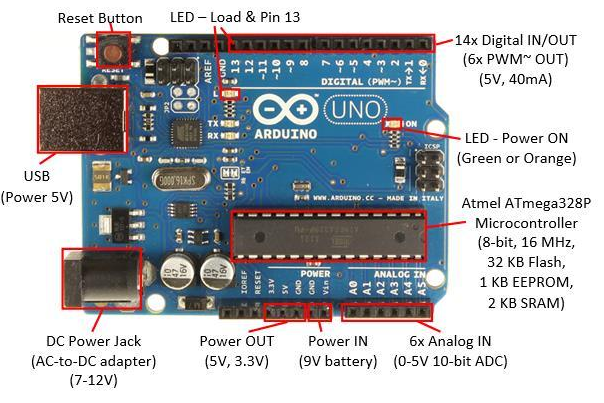
Arduino Uno R3 – לוח המבוסס על מיקרו־בקר ATmega328P, מתאים ללימוד אלקטרוניקה, בקרה ורובוטיקה בסיסית.
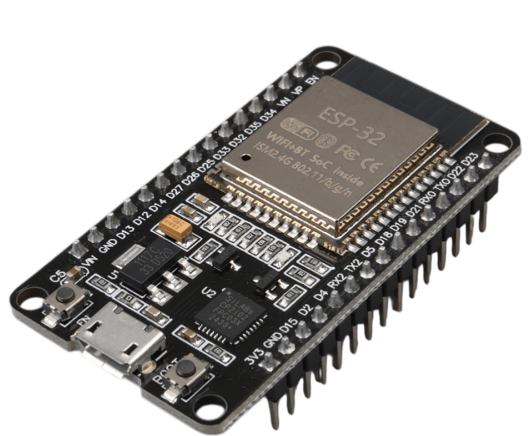
ESP32 DevKit – לוח פיתוח המבוסס על ESP32, המספק יכולת עיבוד גבוהה יותר ותקשורת Wi-Fi ו-Bluetooth.
2. מבנה Arduino Uno R3
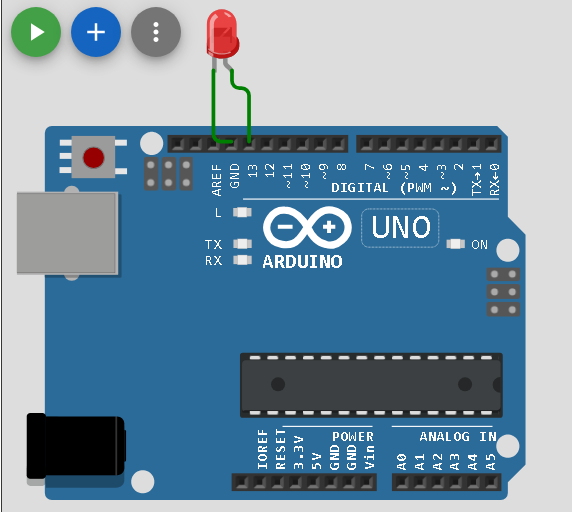
ה־Arduino Uno R3 כולל מספר רכיבים עיקריים:
| רכיב | תפקיד |
|---|---|
| ATmega328P | המיקרו־בקר הראשי שמריץ את התוכנה |
| ATmega16U2 | ממיר תקשורת USB ל־UART |
| Clock 16 MHz | קביעת קצב הפעולה של המעבד |
| Voltage Regulator | ייצוב מתח ההזנה |
| USB | הזנה, תקשורת וצריבת תוכנה |
| Reset | אתחול המיקרו־בקר |
| GPIO Headers | חיבור חיישנים, מנועים ורכיבים |
3. המפרט הטכני של Arduino Uno R3
| פרמטר | נתון |
|---|---|
| מיקרו־בקר | ATmega328P |
| ארכיטקטורה | AVR, 8-bit |
| תדר מעבד | 16 MHz |
| מתח עבודה | 5V |
| מתח כניסה מומלץ דרך VIN או שקע DC | 7–12V |
| מתח כניסה דרך USB | 5V |
| זרם עבודה של הלוח | תלוי ברכיבים ובפעילות |
| זרם מומלץ מרבי לפין I/O | 20mA |
| פינים דיגיטליים | 14 |
| כניסות אנלוגיות | 6 |
| יציאות PWM | 6 |
| זיכרון Flash | 32KB |
| זיכרון SRAM | 2KB |
| זיכרון EEPROM | 1KB |
| רזולוציית ADC | 10-bit |
מקור: המפרט הרשמי של Arduino.
4. סוגי הזיכרון במיקרו־בקר
| זיכרון | גודל ב־Uno | תפקיד | נשמר ללא חשמל? |
|---|---|---|---|
| Flash | 32KB | שמירת התוכנה | כן |
| SRAM | 2KB | משתנים, מחסנית ונתונים זמניים | לא |
| EEPROM | 1KB | שמירת הגדרות ונתונים | כן |
דוגמה: כאשר צורבים תוכנה שמדליקה LED, פקודות התוכנה נשמרות ב־Flash. המשתנים שלה נשמרים ב־SRAM בזמן הפעולה. אם נרצה לשמור הגדרה גם לאחר ניתוק המתח, נוכל להשתמש ב־EEPROM.
המונח ROM מתייחס לזיכרון לקריאה בלבד, אך ב־Arduino התוכנית נשמרת בפועל ב־Flash, שאותו ניתן למחוק ולצרוב מחדש.
5. סוגי כניסות ויציאות (I/O)
| סוג | תפקיד | דוגמה |
|---|---|---|
| Digital Input | קריאת מצב HIGH/LOW | לחצן |
| Digital Output | יצירת HIGH/LOW | הדלקת LED |
| Analog Input | מדידת מתח אנלוגי | פוטנציומטר |
| PWM Output | אות דיגיטלי בעל רוחב פולס משתנה | בקרת מהירות מנוע |
| UART | תקשורת טורית | חיבור למחשב או מודול GPS |
| I2C | תקשורת דו־חוטית | חיישן טמפרטורה |
| SPI | תקשורת טורית מהירה | צג או ממיר ADC חיצוני |
חלוקת הפינים בארדואינו
-
D0–D13: פינים דיגיטליים.
-
A0–A5: כניסות אנלוגיות, שניתן להשתמש בהן גם כדיגיטליות.
-
D3, D5, D6, D9, D10, D11: יציאות PWM.
-
D0, D1: תקשורת UART.
-
A4, A5: תקשורת I2C.
-
D10–D13: פינים המשמשים בממשק SPI, לצד גישה ל־SPI גם דרך מחבר ICSP.
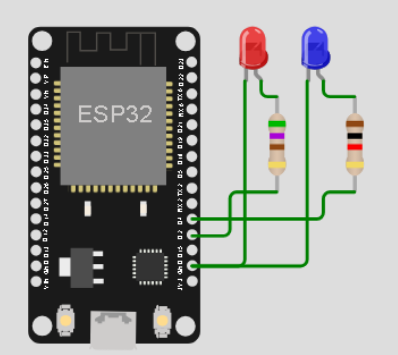
|
1 2 3 4 5 6 7 8 9 10 11 12 13 14 15 16 17 18 19 20 21 22 23 24 |
// http://robotronix.co.il int ledRed = 2; // Set GPIO 2 for the red LED int ledBlue = 4; // Set GPIO 4 for the blue LED void setup() { // Runs once when the ESP32 starts pinMode(ledRed, OUTPUT); // Set red LED pin as output pinMode(ledBlue, OUTPUT); // Set blue LED pin as output Serial.begin(115200); // Start serial communication Serial.println("Hello, ESP32!"); // Print a message } void loop() { // Runs repeatedly digitalWrite(ledRed, HIGH); // Turn ON red LED digitalWrite(ledBlue, LOW); // Turn OFF blue LED delay(1000); // Wait 1 second digitalWrite(ledRed, LOW); // Turn OFF red LED digitalWrite(ledBlue, HIGH); // Turn ON blue LED delay(1000); // Wait 1 second } |
2. סרבו פשוט – יש להוסיף ספריה
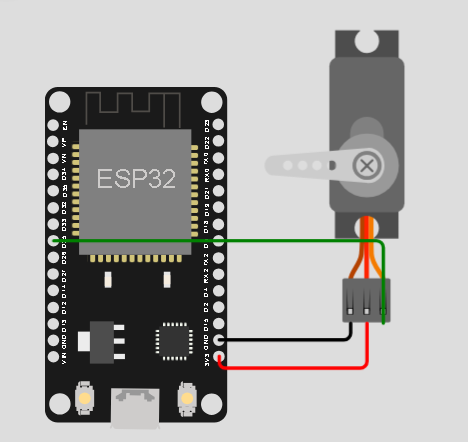
https://wokwi.com/projects/375843908458559489
|
1 2 3 4 5 6 7 8 9 10 11 12 13 14 15 16 17 18 19 20 21 22 23 24 25 26 27 28 29 30 |
// Servo example for ESP32 // http://www.robotronix.co.il #include <ESP32Servo.h> // Include servo library int servoPin = 25; // Servo signal connected to GPIO 25 int pos = 0; // Store servo angle Servo servo; // Create servo object void setup() { // Run once at startup Serial.begin(115200); // Start serial communication Serial.println("start, robotronix.co.il"); // Print message servo.attach(servoPin, 500, 2400); // Set GPIO and pulse range (us) } void loop() { // Run continuously for (pos = 0; pos <= 180; pos++) { // Move from 0 to 180 degrees servo.write(pos); // Set servo position delay(15); // Wait 15 ms } for (pos = 180; pos >= 0; pos--) { // Move from 180 to 0 degrees servo.write(pos); // Set servo position delay(15); // Wait 15 ms } } |
3. שימוש כפתור – הדלקה לד
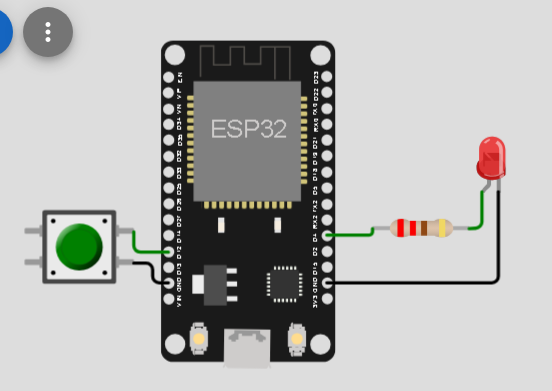
https://wokwi.com/projects/348323129018286675
|
1 2 3 4 5 6 7 8 9 10 11 12 13 14 15 16 17 18 19 20 21 22 23 24 25 26 27 28 29 30 31 32 33 34 35 36 |
// www.robotronix.co.il // Embedded Systems Programming Course // Robotics, Microcontrollers, Arduino and ESP32 #define led 4 // LED connected to GPIO 4 #define button 12 // Button connected to GPIO 12 int buttonState; // Store the button state void setup() { // Run once at startup Serial.begin(115200); // Start serial communication Serial.println("System started"); // Print startup message pinMode(button, INPUT_PULLUP); // Enable internal pull-up resistor pinMode(led, OUTPUT); // Set LED pin as output } void loop() { // Run continuously buttonState = digitalRead(button); // Read button state if (buttonState == LOW) { // Check if button is pressed Serial.println("LED ON"); // Print LED status digitalWrite(led, HIGH); // Turn LED ON } if (buttonState == HIGH) { // Check if button is released Serial.println("LED OFF"); // Print LED status digitalWrite(led, LOW); // Turn LED OFF } delay(100); // Wait 100 ms } |
4.שימוש בסרבו לד , פוטנציומטר
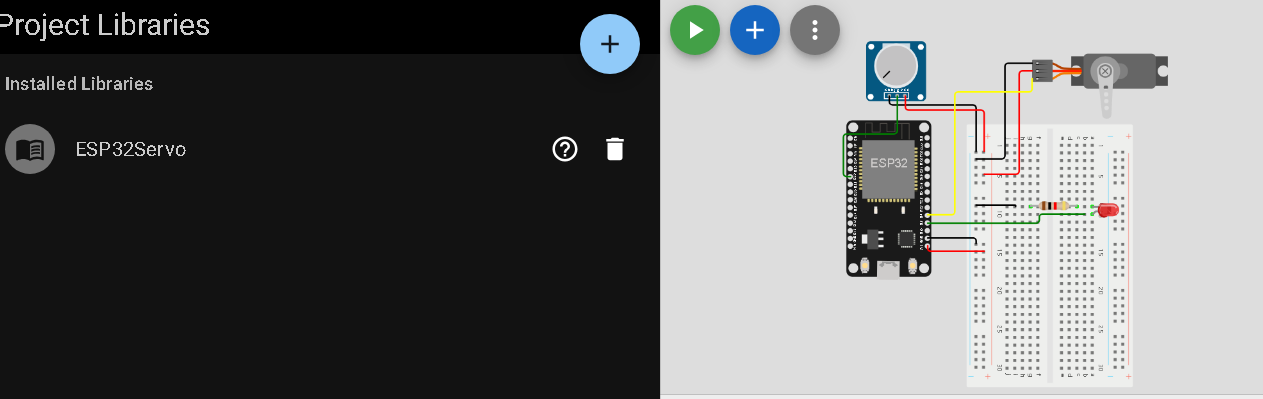
https://wokwi.com/projects/369857352802240513
|
1 2 3 4 5 6 7 8 9 10 11 12 13 14 15 16 17 18 19 20 21 22 23 24 25 26 27 28 29 30 31 32 33 34 35 36 37 38 39 40 41 42 43 |
// www.robotronix.co.il // Embedded Systems and Robotics Programming Course // ESP32 - Potentiometer, LED and Servo Motor #include <ESP32Servo.h> // Include ESP32 servo library const int ledPin = 2; // LED connected to GPIO 2 const int potentiometerPin = 32; // Potentiometer connected to GPIO 32 const int servoPin = 4; // Servo connected to GPIO 4 Servo servo; // Create servo object void setup() { // Run once at startup pinMode(ledPin, OUTPUT); // Set LED pin as output pinMode(potentiometerPin, INPUT); // Set potentiometer pin as input servo.setPeriodHertz(50); // Set servo PWM frequency to 50 Hz servo.attach(servoPin); // Attach servo to GPIO 4 Serial.begin(115200); // Start serial communication } void loop() { // Run continuously int potValue = analogRead(potentiometerPin); // Read analog value (0-4095) Serial.print("Potentiometer Value: "); // Print label Serial.println(potValue); // Print measured value if (potValue > 1000) { // Check if value is above threshold digitalWrite(ledPin, HIGH); // Turn LED ON servo.write(0); // Move servo to 0 degrees } else { // Value is 1000 or less digitalWrite(ledPin, LOW); // Turn LED OFF servo.write(180); // Move servo to 180 degrees } delay(100); // Wait 100 milliseconds } |
5. קליטת מספר מהמקלדת והדלקת לד
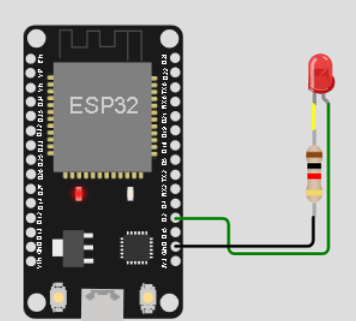
|
1 2 3 4 5 6 7 8 9 10 11 12 13 14 15 16 17 18 19 20 21 22 23 24 25 26 27 28 29 30 31 32 33 34 35 36 37 38 39 40 41 42 43 |
const int ledPin = 2; // Pin connected to the LED bool ledState = false; // Current state of the LED void setup() { Serial.begin(9600); pinMode(ledPin, OUTPUT); digitalWrite(ledPin, LOW); // Turn off the LED initially } void loop() { if (Serial.available() > 0) { int command = Serial.parseInt(); // Read the incoming numeric command // Process the received command using select-case structure switch (command) { case 1: // Command 1 to turn the LED on digitalWrite(ledPin, HIGH); // Turn on the LED ledState = true; Serial.println("LED is ON"); break; case 2: // Command 2 to turn the LED off digitalWrite(ledPin, LOW); // Turn off the LED ledState = false; Serial.println("LED is OFF"); break; case 3: // Command 3 to get the current LED state if (ledState) { Serial.println("LED is currently ON"); } else { Serial.println("LED is currently OFF"); } break; default: Serial.println("Invalid command. Available commands: 1 (ON), 2 (OFF), 3 (CURRENT)"); break; } // Read the remaining characters from the serial buffer to clear it while (Serial.available() > 0) { char _ = Serial.read(); } } } |
5.1 שימוש במסך oled 0.96 – כתיבת הודעה פשוטה SSD106
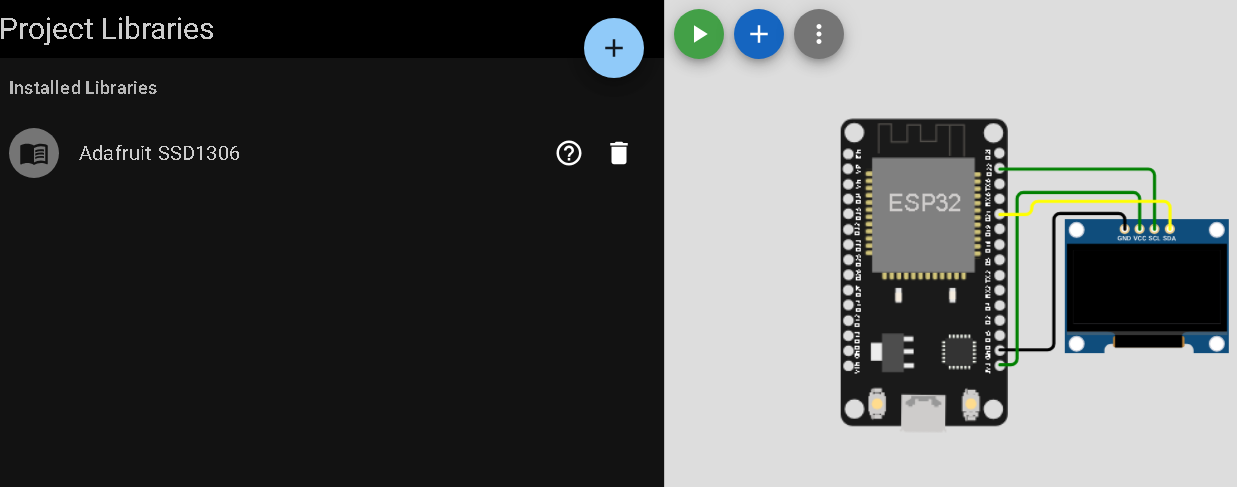
https://wokwi.com/projects/350341364144144978
5.2 גלאי מרחק
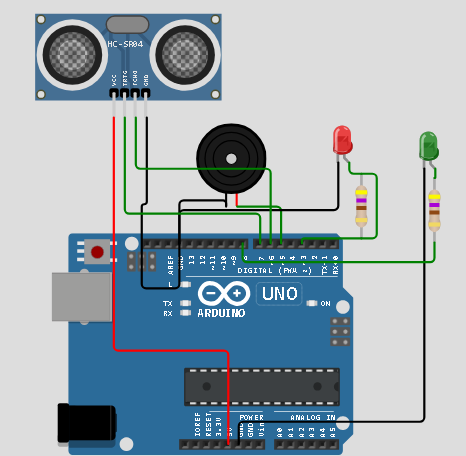
https://wokwi.com/projects/367903941031500801
|
1 2 3 4 5 6 7 8 9 10 11 12 13 14 15 16 17 18 19 20 21 22 23 24 25 26 27 28 29 30 31 32 33 34 35 36 37 38 39 40 41 42 43 44 45 46 47 48 49 50 51 52 53 54 55 56 57 58 59 60 61 62 63 64 65 66 67 68 69 70 71 72 73 74 75 76 77 78 79 80 81 82 83 84 85 86 87 88 89 90 91 92 93 94 95 96 |
// www.robotronix.co.il // רובוטרוניקס קורס C510 // שיעור 8 - צללים טונים #define speaker 5 #define LedRed 3 #define LedGreen 8 const int pingPin = 7; // Trigger Pin of Ultrasonic Sensor const int echoPin = 6; // Echo Pin of Ultrasonic Sensor void setup() { // pin setting pinMode(pingPin, OUTPUT); pinMode(echoPin, INPUT); pinMode(LedRed , OUTPUT); pinMode(LedGreen, OUTPUT); digitalWrite(LedRed, HIGH); digitalWrite(LedGreen , HIGH); Serial.begin(9600); // Starting Serial Terminal delay(250); digitalWrite(LedRed, LOW); digitalWrite(LedGreen , LOW); Serial.println("starting ..."); } void loop() { long duration, inches, cm; // generate pulse ___|^^^^^|_______________ digitalWrite(pingPin, LOW); delayMicroseconds(2); digitalWrite(pingPin, HIGH); delayMicroseconds(10); digitalWrite(pingPin, LOW); // read pulse duration = pulseIn(echoPin, HIGH); cm = microsecondsToCentimeters(duration); // Serial.print(inches); // Serial.print("in, "); Serial.print(cm); Serial.print("cm"); Serial.println(); if(cm > 200) // 20 cm { digitalWrite(LedRed, LOW); digitalWrite(LedGreen, HIGH); } else { digitalWrite(LedRed ,HIGH); digitalWrite(LedGreen, LOW); } delay(200); } long microsecondsToCentimeters(long microseconds) { return (microseconds / 29 / 2); } /* In the code, the division by 29 is used to convert the duration of the ultrasonic pulse (measured in microseconds) into a distance measurement in centimeters. This conversion is based on the speed of sound in air and the round-trip travel time of the ultrasonic pulse. The speed of sound in air is approximately 343 meters per second (or 34300 centimeters per second). To calculate the distance traveled by the ultrasonic pulse, you need to consider the time it takes for the pulse to travel from the sensor to the obstacle and back. Since the pulse needs to travel the distance twice (to the obstacle and back), the time measured by the pulseIn() function represents the round-trip time. To calculate the one-way distance traveled by the pulse, you divide the round-trip time by 2. However, the pulseIn() function returns the duration in microseconds, so you need to convert it to seconds by dividing it by 1,000,000. Thus, you have the time taken by the pulse for a one-way trip in seconds. To convert this time to distance in centimeters, you multiply it by the speed of sound (34300 cm/s). The resulting value is the distance traveled by the pulse in centimeters. Here's the breakdown of the calculation: duration is the pulse duration measured by pulseIn() in microseconds. microsecondsToCentimeters(duration) function divides the duration by 29 (approximately the speed of sound divided by 2), giving the one-way distance traveled by the pulse in centimeters. Keep in mind that this is an approximation as the speed of sound can vary slightly with factors like temperature and humidity. */ |
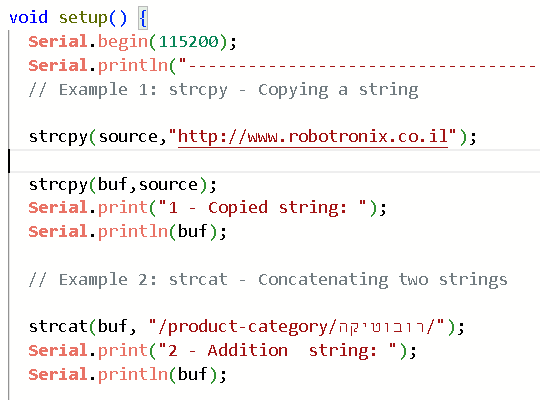
6. מחרוזות STRING : אורך , הוספה , העתקה ,חיפוש
|
1 2 3 4 5 6 7 8 9 10 11 12 13 14 15 16 17 18 19 20 21 22 23 24 25 26 27 28 29 30 31 32 33 34 35 36 37 38 39 40 41 42 43 44 45 46 47 48 49 50 51 52 53 54 55 56 57 58 59 60 61 62 63 64 65 66 67 68 69 |
// https://www.robotronix.co.il // String Programming Exercises - Robotics and Microcontrollers // Learn C Strings, Arduino and ESP32 Programming #include <string.h> // Include C string functions char buf[80]; // Buffer for string operations char source[40]; // Buffer for the source string void setup() { // Run once at startup Serial.begin(115200); // Start serial communication Serial.println("---------------------------------------"); // Example 1: strcpy - Copy a string strcpy(source, "http://www.robotronix.co.il"); // Store website address strcpy(buf, source); // Copy source into buf Serial.print("1 - Copied string: "); // Print label Serial.println(buf); // Print copied string // Example 2: strcat - Concatenate two strings strcat(buf, "/product-category/robotics/"); // Add text to the string Serial.print("2 - Combined string: "); // Print label Serial.println(buf); // Print combined string // Example 3: strlen - Get string length size_t length = strlen(buf); // Count characters in the string Serial.print("3 - String length: "); // Print label Serial.println(length); // Print string length // Example 4: strstr - Find a substring if (strstr(buf, ".co.il") != NULL) { // Search for ".co.il" Serial.println("4 - Substring .co.il found"); } else { // Substring does not exist Serial.println("4 - Substring not found"); } // Example 5: strcmp - Compare two strings const char* key = "12345"; // Define the correct password char userInputKey[20]; // Store the entered password strcpy(userInputKey, "24923"); // Set example password int comparison = strcmp(key, userInputKey); // Compare passwords if (comparison == 0) { // Strings are identical Serial.println("5 - Password correct"); } else { // Strings are different Serial.println("5 - Wrong password"); } } void loop() { // Run continuously // Nothing to execute } |
7. מחרוזות
8. מחרוזות אובייקט מחרזות :
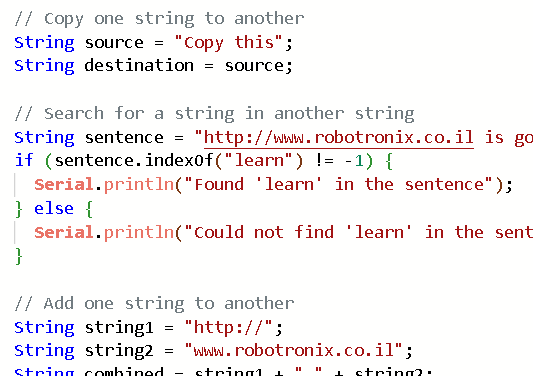
https://wokwi.com/projects/369816336550145025
9.מחרוזות אובייקט STRING פונקציה
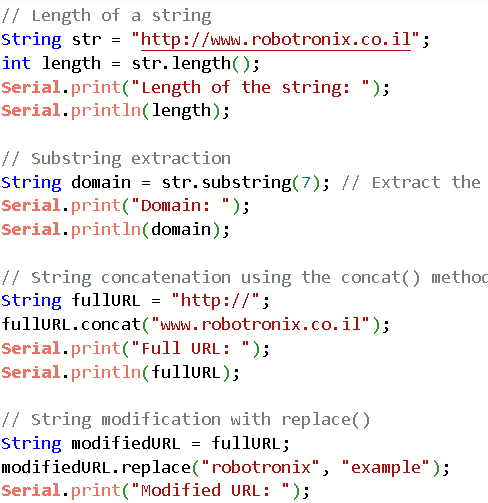
https://wokwi.com/projects/369816474549039105
10.בארז – רמקול
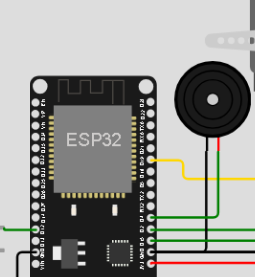
About the Author