קורס בינה מבוא מלאכותית RB40-02 : מבוא לרשתות נוירונים ו ANN
חלק א:
חלק ב: 1 – זיהוי פנים בעזרת בינה מלאכותית
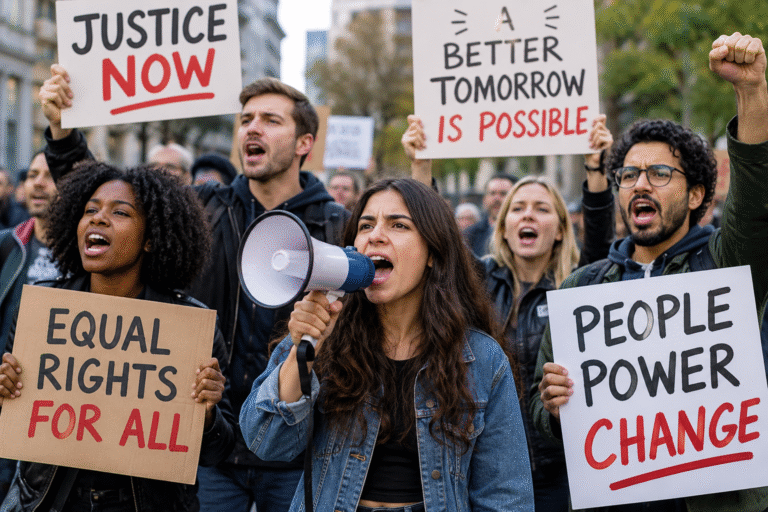
1. תרגיל כיתה – זיהוי פנים באמצעות AI ו־Python בתמונה
נושא: Face Detection Using Python and ChatGPT
סביבת עבודה: Google Colab
ספריות: face_recognition, matplotlib, Pillow, google.colab
1.כתוב תוכנית Python מלאה להרצה ב־Google Colab המשתמשת בספריית face_recognition לזיהוי פנים בתמונה.
- התקן את כל ספריות Python הנדרשות בקוד בלוק ניפרד עבור COLAB
- אפשר למשתמש להעלות תמונה מהמחשב האישי (PC) ל COLAB
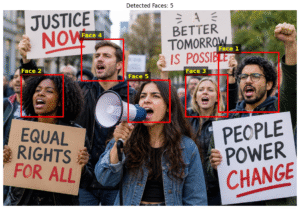
- זהה את כל הפנים המופיעות בתמונה באמצעות
face_recognition. - הצג את המספר הכולל של הפנים שזוהו.
- צייר מלבן אדום סביב כל פנים שזוהו.
- הגדל כל מלבן ב־35% מכל צד ביחס לגודל הפנים שזוהו, בלי לחרוג מגבולות התמונה.
- הוסף מספר סידורי מעל כל פנים.
- הצג את התמונה המקורית עם כל המלבנים והמספרים.
- חתוך את כל הפנים שזוהו, כולל השוליים המוגדלים.
- הצג את כל תמונות הפנים בגלריה ממוספרת.
- שמור כל תמונת פנים בנפרד בפורמט JPG.
- שמור גם את התמונה המקורית עם המלבנים ואת גלריית הפנים.
- צור קובץ ZIP המכיל את כל התוצאות ואפשר להוריד אותו למחשב.
2. בקש מה A.I להסביר מה הולך בכל שורה – המרצה יעבור ויבדוק סעיף זה וישאל אותכם
פתרון
|
1 |
!pip install face-recognition pillow matplotlib |
|
1 2 3 4 5 6 7 8 9 10 11 12 13 14 15 16 17 18 19 20 21 22 23 24 25 26 27 28 29 30 31 32 33 34 35 36 37 38 39 40 41 42 43 44 45 46 47 48 49 50 51 52 53 54 55 56 57 58 59 60 61 62 63 64 65 66 67 68 69 70 71 72 73 74 75 76 77 78 79 80 81 82 83 84 85 86 87 88 89 90 91 92 93 94 95 96 97 98 99 100 101 102 103 104 105 106 107 108 109 110 111 112 113 114 115 116 117 118 119 120 121 122 123 124 125 126 127 128 129 130 131 132 133 134 135 136 137 138 139 140 141 142 143 144 145 146 147 148 149 150 151 152 153 154 155 156 157 158 159 160 161 162 163 164 165 166 167 168 169 170 171 172 173 174 175 176 177 178 179 180 181 182 183 184 185 186 187 188 189 190 |
import face_recognition import matplotlib.pyplot as plt from google.colab import files from PIL import Image import os import math import shutil # ====================================== # SETTINGS # ====================================== FACE_MARGIN = 0.35 # Increase face rectangle by 35% BOX_COLOR = "red" BOX_WIDTH = 3 # ====================================== # STEP 1 - UPLOAD IMAGE FROM PC # ====================================== # Open a file selection window in Google Colab. uploaded = files.upload() # Get the uploaded image filename. filename = next(iter(uploaded)) # ====================================== # STEP 2 - LOAD IMAGE # ====================================== # Convert the image into an RGB NumPy array. image = face_recognition.load_image_file(filename) # Get image dimensions. height, width = image.shape[:2] # ====================================== # STEP 3 - DETECT ALL FACES # ====================================== # HOG detects faces using the CPU. # Each detected face contains: # (top, right, bottom, left) faces = face_recognition.face_locations( image, model="hog" ) print("Total faces detected:", len(faces)) # ====================================== # STEP 4 - CREATE OUTPUT FOLDER # ====================================== os.makedirs("Detected_Faces", exist_ok=True) # ====================================== # STEP 5 - ENLARGE FACE RECTANGLES # ====================================== large_faces = [] for top, right, bottom, left in faces: # Calculate original face dimensions. face_width = right - left face_height = bottom - top # Calculate additional margin. margin_x = int(face_width * FACE_MARGIN) margin_y = int(face_height * FACE_MARGIN) # Enlarge the face bounding box. new_left = max(0, left - margin_x) new_top = max(0, top - margin_y) new_right = min(width, right + margin_x) new_bottom = min(height, bottom + margin_y) large_faces.append( (new_top, new_right, new_bottom, new_left) ) # ====================================== # STEP 6 - SHOW ORIGINAL IMAGE # ====================================== plt.figure(figsize=(12, 9)) plt.imshow(image) for i, (top, right, bottom, left) in enumerate(large_faces): # Draw a larger rectangle around each face. rectangle = plt.Rectangle( (left, top), right - left, bottom - top, fill=False, edgecolor=BOX_COLOR, linewidth=BOX_WIDTH ) plt.gca().add_patch(rectangle) # Add a number above each detected face. plt.text( left, max(0, top - 10), f"Face {i + 1}", color="yellow", fontsize=13, fontweight="bold", bbox=dict(facecolor="black", alpha=0.6) ) plt.title(f"Detected Faces: {len(faces)}") plt.axis("off") # Save the image with enlarged rectangles. plt.savefig( "Detected_Faces/original_with_faces.png", dpi=150, bbox_inches="tight" ) plt.show() # ====================================== # STEP 7 - CROP AND DISPLAY ALL FACES # ====================================== if len(large_faces) > 0: columns = min(4, len(large_faces)) rows = math.ceil(len(large_faces) / columns) fig, axes = plt.subplots( rows, columns, figsize=(columns * 3.5, rows * 3.5), squeeze=False ) for i, (top, right, bottom, left) in enumerate(large_faces): # Crop the enlarged face area. face_image = image[top:bottom, left:right] # Save each face as a separate JPG. face_path = f"Detected_Faces/face_{i+1:03d}.jpg" Image.fromarray(face_image).save(face_path) # Display the cropped face. ax = axes[i // columns][i % columns] ax.imshow(face_image) ax.set_title(f"Face {i + 1}") ax.axis("off") print(f"Face {i + 1}: {face_path}") # Hide unused gallery positions. for j in range(len(large_faces), rows * columns): axes[j // columns][j % columns].axis("off") plt.tight_layout() # Save the entire face gallery. plt.savefig( "Detected_Faces/all_faces.png", dpi=150 ) plt.show() else: print("No faces detected.") # ====================================== # STEP 8 - DOWNLOAD RESULTS # ====================================== # Create a ZIP file containing all results. shutil.make_archive( "Detected_Faces", "zip", "Detected_Faces" ) # Download the ZIP file to your computer. files.download("Detected_Faces.zip") |
חלק ב: 2 – חיפוש פנים בתוך תמונה בעזרת בינה מלאכותית
תרגיל כיתה 2
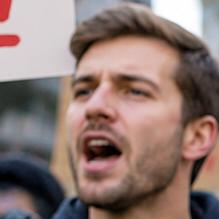
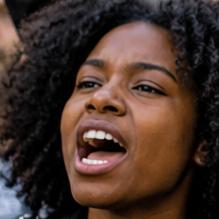
בנה תוכנת בשפת פייתון עבור COLAB שקולטת תמונה ראשנה שהינה תמונות מקור של אנשים ותמונה שניה של פנים של אדם
התוכנה מחפשת את הפנים בתמונה מסמן אותו כותבת אחוז התאמה וכותבת פלט נימצא מיקום מדויק ואחוז התאמה אם לא נימצא מסמלת שלא נימצא
2. בקש מה A.I להסביר מה הולך בכל שורה – המרצה יעבור ויבדוק סעיף זה וישאל אותכם
פתרון
|
1 |
!pip install face-recognition pillow matplotlib |
|
1 2 3 4 5 6 7 8 9 10 11 12 13 14 15 16 17 18 19 20 21 22 23 24 25 26 27 28 29 30 31 32 33 34 35 36 37 38 39 40 41 42 43 44 45 46 47 48 49 50 51 52 53 54 55 56 57 58 59 60 61 62 63 64 65 66 67 68 69 70 71 72 73 74 75 76 77 78 79 80 81 82 83 84 85 86 87 88 89 90 91 92 93 94 95 96 97 98 99 100 101 102 103 104 105 106 107 108 109 110 111 112 113 114 115 116 117 118 119 120 121 122 123 124 125 126 127 128 129 130 131 132 133 134 135 136 137 138 139 140 141 142 143 144 145 146 147 148 149 150 151 152 153 154 155 156 157 158 159 160 161 162 163 164 165 166 167 168 169 170 171 172 173 174 175 176 177 178 179 180 181 182 183 184 185 186 187 188 189 190 191 192 193 194 195 196 197 198 199 200 201 202 203 204 205 206 207 208 209 210 211 212 213 214 215 216 217 218 219 220 221 222 223 224 225 226 227 228 229 230 231 232 233 234 235 236 237 238 239 240 241 242 243 244 245 246 247 248 249 250 251 252 253 254 255 256 257 258 259 260 261 262 263 264 265 266 267 268 269 270 271 272 273 274 275 276 277 278 279 280 281 282 283 284 285 286 287 288 289 290 291 292 293 294 295 296 297 298 299 300 301 302 303 304 305 306 307 308 309 310 311 312 313 314 315 316 317 318 319 320 321 322 323 324 325 326 327 328 329 330 331 332 333 334 335 336 337 338 339 340 341 342 343 344 345 |
import face_recognition import numpy as np import matplotlib.pyplot as plt from google.colab import files from PIL import Image import os # ========================================================== # STEP 1 - SETTINGS # ========================================================== # Face matching threshold: # A smaller value makes matching more strict. # 0.60 is the library's commonly used default threshold. # 0.50 is stricter and helps reduce false matches. TOLERANCE = 0.50 # Increase the displayed rectangle by 35% on each side. FACE_MARGIN = 0.35 # Rectangle appearance. BOX_COLOR = "lime" BOX_WIDTH = 3 # Create a folder for saving results. os.makedirs("Face_Search_Results", exist_ok=True) # ========================================================== # STEP 2 - UPLOAD TARGET IMAGE FROM PC # ========================================================== # The target image contains the people we want to search. # Example: a classroom photograph or group photograph. print("STEP 2: Upload the TARGET image containing people") uploaded_target = files.upload() if not uploaded_target: raise ValueError("No target image uploaded.") target_filename = next(iter(uploaded_target)) # Load the target image as an RGB NumPy array. target_image = face_recognition.load_image_file( target_filename ) # Get image dimensions in pixels. image_height, image_width = target_image.shape[:2] print("Target image:", target_filename) print("Image width:", image_width) print("Image height:", image_height) # ========================================================== # STEP 3 - UPLOAD SEARCH FACE IMAGE FROM PC # ========================================================== # Upload a photograph containing the face to search for. # A clear, front-facing photograph gives better results. print("\nSTEP 3: Upload the FACE image to search for") uploaded_search = files.upload() if not uploaded_search: raise ValueError("No search image uploaded.") search_filename = next(iter(uploaded_search)) search_image = face_recognition.load_image_file( search_filename ) # Display the face that we are searching for. plt.figure(figsize=(4, 4)) plt.imshow(search_image) plt.title("Search Face") plt.axis("off") plt.show() # ========================================================== # STEP 4 - EXTRACT FACE FEATURES FROM SEARCH IMAGE # ========================================================== # Face encoding is a 128-dimensional numerical vector. # The vector represents facial features learned by the model. # It is used to compare one face with another. search_locations = face_recognition.face_locations( search_image, model="hog" ) # The search image should contain exactly one face. if len(search_locations) != 1: raise ValueError( f"Search image must contain exactly one face. " f"Detected: {len(search_locations)}" ) search_encodings = face_recognition.face_encodings( search_image, known_face_locations=search_locations ) if not search_encodings: raise ValueError("Could not encode the search face.") # Get the 128-dimensional encoding of the search face. search_encoding = search_encodings[0] # ========================================================== # STEP 5 - DETECT ALL FACES IN TARGET IMAGE # ========================================================== # HOG is a CPU-based face detector. # It works without requiring a GPU. target_locations = face_recognition.face_locations( target_image, model="hog" ) # Calculate the 128-dimensional encoding for every face. target_encodings = face_recognition.face_encodings( target_image, known_face_locations=target_locations ) print("\nTotal faces detected:", len(target_locations)) # ========================================================== # STEP 6 - COMPARE SEARCH FACE AGAINST ALL TARGET FACES # ========================================================== # Face distance measures how different two face encodings are. # Smaller distance means the encodings are more similar. # # IMPORTANT: # Distance is NOT a probability. # The percentage below is only a simple similarity indicator. results = [] for i, (location, encoding) in enumerate( zip(target_locations, target_encodings) ): # Compare the search face with the current target face. distance = face_recognition.face_distance( [search_encoding], encoding )[0] # Convert distance to an approximate similarity indicator. # This is NOT a calibrated probability or accuracy score. similarity = max(0.0, (1.0 - distance) * 100.0) # Determine whether the faces match. match = distance <= TOLERANCE if match: # Original face location: # top, right, bottom, left top, right, bottom, left = location # Calculate detected face dimensions. face_width = right - left face_height = bottom - top # Calculate additional margins. margin_x = int(face_width * FACE_MARGIN) margin_y = int(face_height * FACE_MARGIN) # Enlarge the rectangle. # Keep the coordinates inside the image boundaries. x1 = max(0, left - margin_x) y1 = max(0, top - margin_y) x2 = min(image_width, right + margin_x) y2 = min(image_height, bottom + margin_y) # Store all information about the matching face. results.append({ "face_number": i + 1, "distance": float(distance), "similarity": float(similarity), "x": x1, "y": y1, "width": x2 - x1, "height": y2 - y1, "right": x2, "bottom": y2 }) # ========================================================== # STEP 7 - PRINT SEARCH RESULTS # ========================================================== print("\n========== SEARCH RESULTS ==========") if len(results) == 0: print("NOT FOUND - לא נמצא") else: print("FOUND - נמצא") print("Total matches:", len(results)) for result in results: print("\n------------------------------") print("Face number:", result["face_number"]) print("Face distance:", round(result["distance"], 4)) print( "Similarity indicator:", f'{result["similarity"]:.1f}%' ) # Coordinates are measured in pixels. # (0, 0) is the top-left corner of the image. print("X:", result["x"]) print("Y:", result["y"]) print("Width:", result["width"]) print("Height:", result["height"]) print("Right:", result["right"]) print("Bottom:", result["bottom"]) # ========================================================== # STEP 8 - DRAW MATCHING FACES ON TARGET IMAGE # ========================================================== fig, ax = plt.subplots(figsize=(12, 9)) ax.imshow(target_image) # Draw rectangles only around matching faces. for result in results: x = result["x"] y = result["y"] w = result["width"] h = result["height"] similarity = result["similarity"] # Draw a green rectangle around matching face. rectangle = plt.Rectangle( (x, y), w, h, fill=False, edgecolor=BOX_COLOR, linewidth=BOX_WIDTH ) ax.add_patch(rectangle) # Display match number and similarity indicator. ax.text( x, max(0, y - 10), f'Match {result["face_number"]} - {similarity:.1f}%', color="yellow", fontsize=12, fontweight="bold", bbox=dict(facecolor="black", alpha=0.7) ) if len(results) > 0: ax.set_title(f"FOUND - {len(results)} match(es)") else: ax.set_title("NOT FOUND - No matching faces") ax.axis("off") # Save the resulting image with face rectangles. output_path = "Face_Search_Results/search_result.png" plt.savefig( output_path, dpi=150, bbox_inches="tight" ) plt.show() # ========================================================== # STEP 9 - SAVE MATCHING FACE IMAGES # ========================================================== # Save every matching face as a separate JPG image. for result in results: x = result["x"] y = result["y"] w = result["width"] h = result["height"] # Crop the matching face from the original target image. cropped_face = target_image[ y:y+h, x:x+w ] face_path = ( f'Face_Search_Results/' f'match_{result["face_number"]:03d}.jpg' ) Image.fromarray(cropped_face).save(face_path) print("Saved:", face_path) # ========================================================== # STEP 10 - DOWNLOAD RESULTS TO PC # ========================================================== # Create a ZIP file with all saved results. import shutil shutil.make_archive( "Face_Search_Results", "zip", "Face_Search_Results" ) # Download ZIP file to PC. files.download("Face_Search_Results.zip") print("\nProgram finished.") |
חלק ג: רשת ANN
1.קישור פרזנטציה על רשת ANN
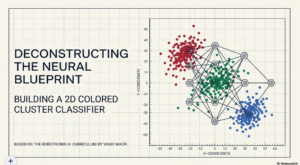
ANN – Artificial Neural Network היא רשת נוירונים מלאכותית, אחד המודלים הבסיסיים של למידת מכונה (Machine Learning) ולמידה עמוקה
(Deep Learning). – הרשת לומדת לזהות קשרים ודפוסים בנתונים באמצעות התאמת משקלים (Weights).
1. מבנה רשת ANN
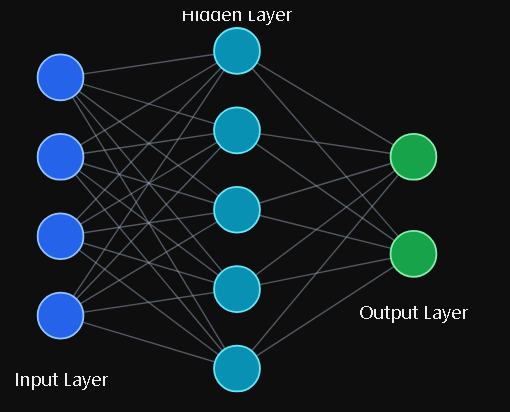
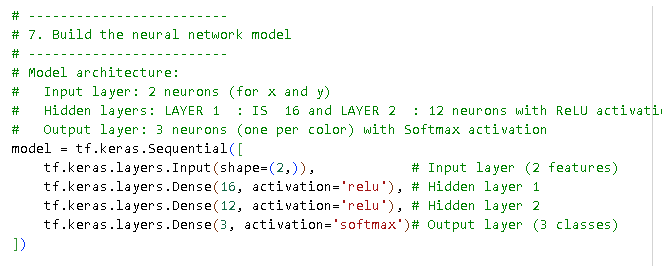
הרשת מורכבת משלוש שכבות עיקריות:
-
Input Layer – מקבלת נתונים, למשל מדידות של חיישנים או מאפיינים של קול.
-
Hidden Layers – מבצעות חישובים ולומדות קשרים בין הנתונים.
-
Output Layer – מפיקה תוצאה, למשל האם נשמע רחפן.
סוגי רשתות ומודלים מרכזיים בבינה מלאכותית (AI)
| סוג | שם מלא | שימוש מרכזי |
|---|---|---|
| ANN | Artificial Neural Network | סיווג וחיזוי לפי נתונים מספריים |
| DNN | Deep Neural Network | למידת דפוסים מורכבים באמצעות שכבות רבות |
| CNN | Convolutional Neural Network | זיהוי תמונות, עצמים וקולות |
| RNN | Recurrent Neural Network | עיבוד רצפים ונתונים לאורך זמן |
| LSTM | Long Short-Term Memory | זיהוי קשרים ארוכי טווח ברצפים |
| Transformer | Transformer | עיבוד שפה, קול, תמונות ורצפים באמצעות Attention |
| LLM | Large Language Model | הבנת שפה, יצירת טקסט וקוד |
| LMM | Large Multimodal Model | שילוב תמונות, קול, טקסט ווידאו |
20 מודלים ואלגוריתמים מרכזיים ב־AI להרצה בפייתון
הרשימה כוללת זיהוי תמונה, פנים, קול, יצירת תמונות, וידאו, דיבור, טקסט, למידת מכונה ורובוטיקה. לכל מודל מצורפת ספריית Python מרכזית ודוגמה מעשית.
חלק א׳ – זיהוי, ניתוח ורובוטיקה
| # | מודל / אלגוריתם | שימוש מרכזי ודוגמה | ספריית Python |
|---|---|---|---|
| 1 | YOLO | זיהוי עצמים: מכוניות, אנשים, בעלי חיים ורחפנים בתמונה | ultralytics |
| 2 | Face Recognition | זיהוי והשוואת פנים של אנשים מול מאגר תמונות | deepface |
| 3 | OCR | קריאת טקסט מתמונות, מספרי רכב ומסמכים | easyocr |
| 4 | MediaPipe Pose | זיהוי מפרקי גוף ותנועות אדם באמצעות מצלמה | mediapipe |
| 5 | Whisper | המרת דיבור לטקסט, כולל פקודות קוליות לרובוט | openai-whisper |
| 6 | YAMNet | סיווג קולות: מנועים, בעלי חיים, דיבור ורעשים | tensorflow-hub |
| 7 | DQN | למידת החלטות באמצעות תגמולים, למשל ניווט רובוט | stable-baselines3 |
| 8 | PPO | למידת שליטה ברובוטים, זרועות וכלבים רובוטיים | stable-baselines3 |
| 9 | Random Forest | חיזוי וסיווג מנתוני חיישנים, כגון תקלה במנוע | scikit-learn |
| 10 | Isolation Forest | זיהוי תקלות וחריגות בנתוני טמפרטורה, זרם ורעידות | scikit-learn |
חלק ב׳ – יצירת קול, תמונה, וידאו וטקסט
| # | מודל | שימוש מרכזי ודוגמה | ספריית Python |
|---|---|---|---|
| 11 | Piper TTS | יצירת דיבור מטקסט, למשל רובוט המדבר בקול | piper-tts |
| 12 | MusicGen | יצירת מוזיקה מטקסט, למשל מוזיקת רקע לסרטון | transformers |
| 13 | AudioGen | יצירת אפקטים קוליים, כגון מנוע, גשם או נביחה | audiocraft |
| 14 | Stable Diffusion | יצירת תמונות מתיאור טקסטואלי | diffusers |
| 15 | ControlNet | יצירת תמונה תוך שליטה במבנה, בקצוות או בתנוחה | diffusers |
| 16 | CogVideoX | יצירת וידאו מתיאור טקסטואלי | diffusers |
| 17 | FLAN-T5 | יצירת טקסט, סיכום טקסט ומענה להוראות | transformers |
| 18 | Qwen (LLM) | יצירת טקסט, כתיבת קוד, שאלות ותשובות | transformers |
| 19 | BART | סיכום טקסטים ארוכים לתמצית קצרה | transformers |
| 20 | MarianMT | תרגום טקסט בין שפות באמצעות מודל תרגום | transformers |
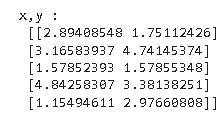
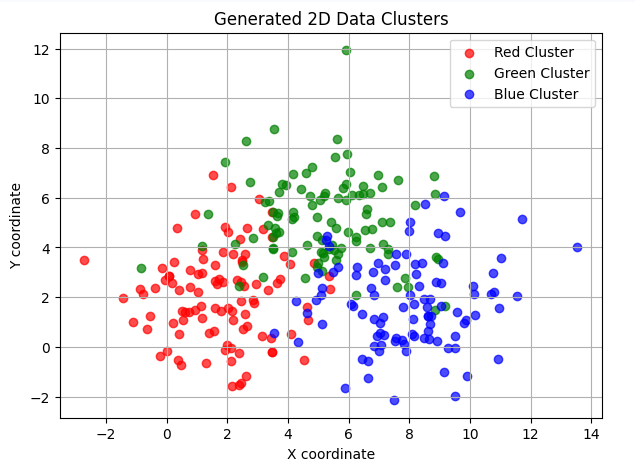
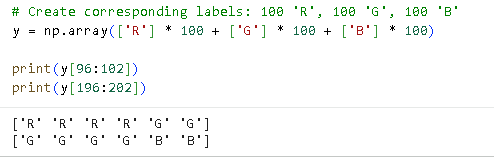
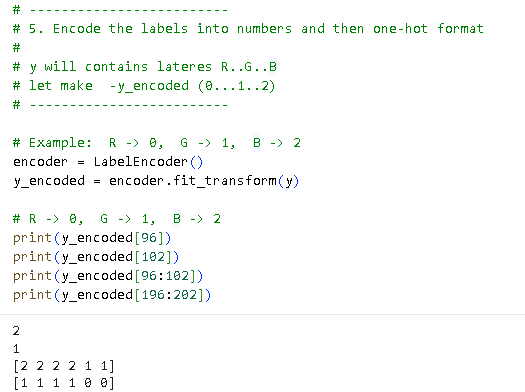
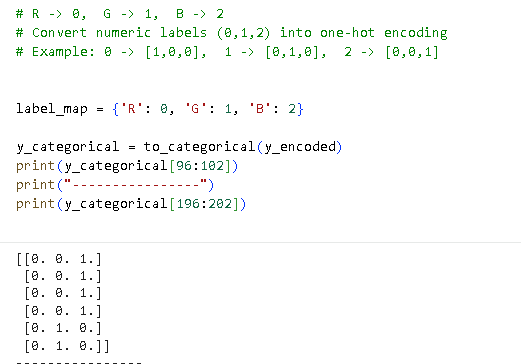
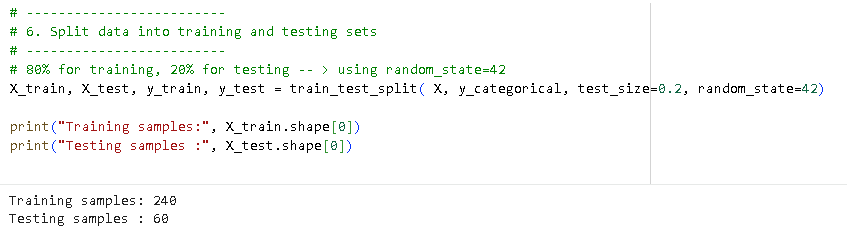
2.קישור לקוד הרצה ולימוד של רשת ANN
About the Author